
How to Delete and Repair Your CarPlay Connection
A clean installation doesn’t guarantee a reliable connection between your phone and infotainment system. If Apple CarPlay is not working after install, remove the saved pairing from both your iPhone and the vehicle, restart both, then reconnect and check the relevant settings. For wired CarPlay, test another cable and USB port as well.
It’s frustrating when a feature designed to make driving more convenient stops connecting. The cause may be a saved pairing, a setting, or a connection issue. A careful reset can help narrow down the cause without changing several things at once.
This guide explains how to remove and recreate the connection, check Siri, Wi-Fi, Bluetooth, and CarPlay settings, inspect cables and ports, and restart your phone and vehicle. Follow the steps in order to determine whether the issue is with the connection or the installation.
Key Takeaways
- For wireless CarPlay, check Bluetooth, Wi-Fi, and Auto-Join settings before rebuilding the connection.
- Review iPhone and vehicle CarPlay settings, including whether CarPlay is allowed and the car is selected.
- Removing the old pairing from both the phone and vehicle can help establish a clean connection.
- For wired connections, try a different compatible cable and USB port to narrow down the source of the problem.
- Restarting the iPhone and vehicle can clear temporary connection issues before you pair them again.
Checking Siri, Wi-Fi, and Bluetooth settings
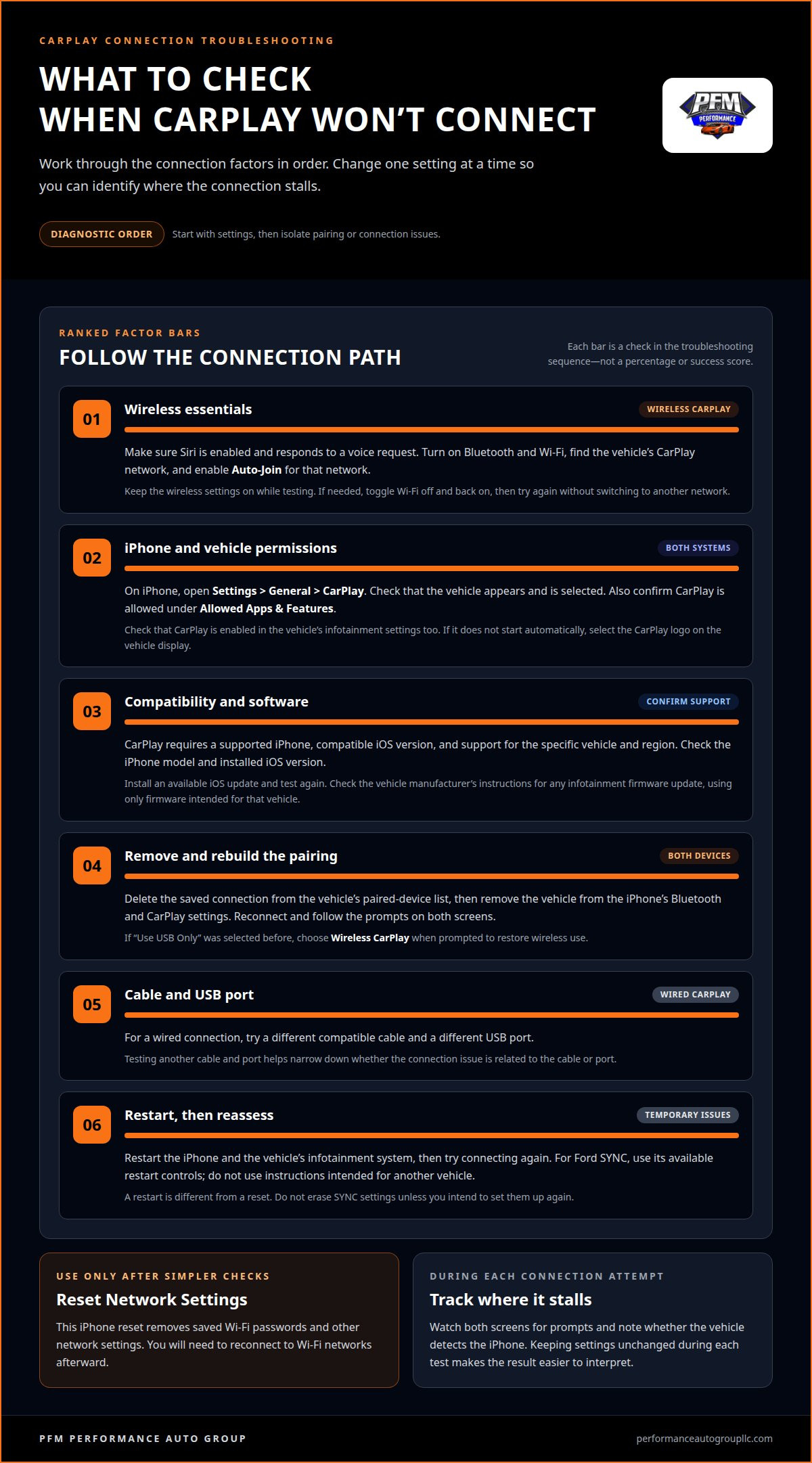
For wireless CarPlay, check Siri, Bluetooth, Wi-Fi, and Auto-Join before changing the pairing. Review each setting on your iPhone, then try connecting again.
-
Review Siri and wireless settings
Open Settings on your iPhone and check Siri first. Make sure Siri is enabled and responds to a voice request, since voice controls depend on it. Then check Bluetooth and Wi-Fi. Look for the vehicle or CarPlay connection and see whether either wireless setting is off.
Change one setting at a time, then retry CarPlay. This makes it easier to identify whether a setting was blocking the connection.
-
Enable Bluetooth and Wi-Fi
Turn on Bluetooth and Wi-Fi in iPhone Settings for wireless CarPlay. Both need to be active, even if the vehicle display shows a pairing prompt. In Wi-Fi settings, locate the CarPlay network and enable Auto-Join. Without Auto-Join, your iPhone may not reconnect to that network automatically.
Keep both wireless settings on while testing. If your phone joins another Wi-Fi network, return to the CarPlay network and check Auto-Join again.
-
Check the CarPlay network connection
Open your iPhone’s Wi-Fi list and identify the network associated with the vehicle’s CarPlay system. Confirm Auto-Join is enabled for that network, rather than assuming the general Wi-Fi setting covers it. If the network appears but CarPlay still won’t connect, toggle Wi-Fi off and back on, then try pairing again.
When prompted, use the vehicle display to begin the wireless connection. Avoid selecting another network during this test so you can tell whether the CarPlay connection returns.
-
Restore wireless CarPlay after choosing USB Only
If you previously selected “Use USB Only,” wireless CarPlay may remain disabled for that pairing. Remove the phone from the vehicle’s paired-device list, then remove the vehicle from your iPhone’s Bluetooth and CarPlay settings. Reconnect the devices and choose Wireless CarPlay when prompted.
Follow the new pairing prompts on both screens. Selecting the wireless option is essential; reconnecting without changing the earlier choice may leave the problem unresolved.
-
Test the settings together
With Siri available, Bluetooth and Wi-Fi on, and Auto-Join enabled, start a fresh connection attempt. Watch both screens for prompts and accept the CarPlay pairing request where it appears. If wireless CarPlay still fails, note where the process stalls before moving on to the pairing reset or cable checks.
A repeatable test helps isolate the problem. Keep the settings unchanged during each attempt, and note whether the vehicle detects your iPhone.
Checking iPhone CarPlay settings and restrictions
Check your iPhone’s CarPlay permission, selected vehicle, and software before rebuilding the connection. CarPlay requires a compatible iPhone and iOS version, as well as support in your region and vehicle. Compatibility depends on the specific combination.
-
Restart or reset SYNC and iPhone
Restart your iPhone and the vehicle’s infotainment system, then try CarPlay again. For Ford SYNC, use its available restart controls; don’t apply button instructions meant for another vehicle. A restart differs from a reset, so don’t erase SYNC settings unless you intend to set them up again.
If restarting doesn’t help, remove the car from your iPhone’s CarPlay settings and pair it again. Keep your phone and infotainment system available during setup so you can respond to prompts on both screens.
-
Check iPhone model and iOS support
Check your iPhone model and installed iOS version when confirming compatibility. CarPlay requires a supported iPhone, a compatible iOS version, and a region and vehicle that support CarPlay. If another iPhone connects successfully, that doesn’t mean every model or software combination will work.
Install an available iOS update, then test the connection again. If your iPhone is up to date but still won’t connect, check the vehicle’s CarPlay permissions and pairing settings rather than assuming the phone model alone explains the problem.
- Open Settings > General > CarPlay on your iPhone. Check whether the vehicle appears and is selected. If it’s missing, remove any outdated pairing and set up CarPlay again. If CarPlay doesn’t start automatically, select the CarPlay logo on the vehicle display.
Also check your iPhone’s Allowed Apps & Features restrictions. Make sure CarPlay is allowed; a restriction can prevent it from launching even when the vehicle pairing is saved. Then check the vehicle’s infotainment settings and make sure CarPlay is enabled there too.
- Update your iPhone through its software update settings, then test CarPlay before changing anything else. If the problem began after an iOS update, creating a fresh pairing can help distinguish a saved connection issue from an infotainment compatibility issue.
Check the vehicle manufacturer’s instructions for available infotainment firmware updates. Use firmware intended for your vehicle and follow its update process. Don’t install files meant for another system.
- Use Reset Network Settings on your iPhone only after simpler checks fail. This reset removes saved Wi-Fi passwords and other network settings, so you’ll need to reconnect to Wi-Fi networks afterward. It doesn’t replace checking the CarPlay restriction or the car’s infotainment setting.
Once the reset finishes, reconnect your iPhone to the vehicle and test CarPlay. If it still fails, note whether the phone appears in CarPlay settings and whether the vehicle display responds to the CarPlay logo.
How can I delete and repair my phone connection with the infotainment system?
Delete the saved pairing from both devices, then reconnect using the method your vehicle supports. Test wireless and USB connections separately to identify where the failure occurs.
- On your iPhone, open Settings > General > CarPlay, select the vehicle, and choose the option to forget it. Then remove the iPhone from the vehicle’s paired-phone or CarPlay list. Clearing both sides removes the old connection instead of leaving one device trying to reuse it.
Keep your phone and vehicle nearby while deleting the pairings. Don’t start a new connection until both saved entries are removed.
-
Troubleshoot intermittent connections
Notice whether CarPlay drops during wireless use, wired use, or both. If a cable connection works but wireless CarPlay fails, focus on the wireless pairing. If both fail, inspect the saved connection and the vehicle’s response. Note when the interruption happens, such as immediately after connecting or while switching vehicle screens.
Remove the old pairing from both devices, then reconnect and repeat the same test. Changing one condition at a time helps isolate intermittent faults.
- For wireless CarPlay, start the vehicle’s pairing process and select the car when it appears in your iPhone’s CarPlay setup. Follow prompts on both screens, and choose the wireless option if asked. If the system previously used “Use USB Only,” remove the saved pairings before selecting wireless setup again.
Wait for CarPlay to appear on the vehicle display before opening another infotainment feature. If setup stops, note the last screen or prompt.
-
Troubleshoot the wired USB connection
For wired CarPlay, connect your iPhone directly to the vehicle’s USB port with a compatible cable. Some combinations of USB-C to Lightning adapters, cables, and vehicle systems can interrupt wired CarPlay, so remove any adapter while testing. If the connection drops, try another cable and an available USB port.
Test one cable-and-port combination at a time. A new cable alone may not solve the problem if the port or connection process is the cause.
- To establish a wired connection, plug your iPhone into the vehicle’s CarPlay-capable USB port and accept any prompt on the phone or display. In some vehicles, connecting the iPhone before starting the car can help establish the connection. Keep the phone connected while the infotainment system starts.
If CarPlay doesn’t appear, check whether your iPhone charges and whether the vehicle detects it. Then try another available USB port or cable before repeating the pairing setup.
- After reconnecting, follow the same steps through the vehicle’s menus each time. Confirm the display recognizes your iPhone and that CarPlay stays active. If wireless fails but USB works, note the difference. If neither works after removing both pairings, the issue may involve the infotainment connection rather than a saved pairing alone.
Use these observations to guide your next checks of cables, ports, and system restarts.
Choosing the correct USB cable and port
For wired CarPlay, test the cable and USB port separately. A direct connection helps identify whether the issue follows the cable, the port, or the vehicle connection.
- Connect your iPhone directly to the vehicle with a compatible USB cable. Avoid adding a USB-C to Lightning adapter during the first test, since some adapter, cable, and vehicle combinations can disrupt wired CarPlay. A direct cable connection is also appropriate for vehicles that support wired CarPlay only.
Keep the connection simple: one iPhone, one cable, and one vehicle port. If CarPlay starts, don’t add other accessories until you’ve confirmed the connection stays stable.
- Try a different USB cable if your iPhone charges but CarPlay doesn’t open. Charging alone doesn’t show that the cable is carrying the connection CarPlay needs. Apple recommends testing another cable for wired connection problems. Change only the cable first, then retry the same port.
If you drive a Chevrolet, use the original phone cable or a high-quality MFi-certified cable for wired CarPlay. Don’t assume every cable that charges an iPhone will work for this connection.
- Move the cable to another available USB port if your vehicle has one. Apple recommends trying another port when wired CarPlay fails. Keep the same iPhone and cable during this test; changing both at once makes it harder to identify what affected the connection.
Check the vehicle display after reconnecting. If CarPlay appears in one port but not another, note which port worked and use it for the next test.
- Test a USB-C to Lightning adapter only after trying a direct cable. This adapter can be used with wired CarPlay in most vehicles, but some adapter, cable, and infotainment combinations can interrupt the connection. If the adapter setup disconnects, remove it and retry with a direct USB cable.
Repeat the same connection process after each change. A consistent result helps distinguish an adapter-related interruption from a vehicle-port issue.
- Inspect the cable ends and the vehicle’s USB port before trying again. Make sure the plug fits firmly and isn’t pulled sideways by your phone’s position. Keep the iPhone steady while testing, since a loose connection can interrupt CarPlay during use.
Note which combinations work, such as a direct cable in one port and then in another. If a new cable doesn’t solve the problem, continue testing available ports rather than replacing cables repeatedly.
- Compare wired and wireless results if your vehicle supports both. If USB CarPlay works while wireless CarPlay doesn’t, the wired test shows that the vehicle can recognize your iPhone through its USB connection. If both methods fail, keep the cable and port results for your next troubleshooting step.
Use your observations to avoid repeating tests that have already failed. A clear record of the iPhone, cable, and port used makes the next connection check more precise.
Restarting the phone and vehicle
Restart your iPhone and infotainment system before testing CarPlay again. A deliberate sequence helps distinguish a temporary connection fault from an issue that persists after a fresh start.
- Disconnect your iPhone from the vehicle before restarting either device. Close any active CarPlay session, then restart the iPhone using its regular power controls. Wait until the home screen appears before trying to connect again. This gives the phone a fresh start without changing saved pairings or network settings.
Keep your iPhone disconnected during this step. Reconnecting before the restart finishes can make it harder to tell whether the restart changed anything.
- Restart the vehicle’s infotainment system using the controls provided for that vehicle. Some systems restart with the vehicle; others have separate controls. Follow the vehicle’s operating instructions rather than trying button combinations intended for another model.
After the display returns, let the system finish loading its menus. Then check whether the CarPlay screen or logo is available before reconnecting your iPhone.
- After restarting the infotainment system, turn the vehicle off and leave it off for five minutes before trying again. This pause gives the system time to shut down before a fresh start. Keep your iPhone disconnected while the vehicle is off, so the next attempt begins with both systems restarted.
After five minutes, start the vehicle and let the infotainment display load. Reconnect only when the screen is ready for input.
- For a Chevrolet, let the restarted vehicle run for 15-20 seconds before reconnecting the iPhone to Apple CarPlay. This allows the vehicle’s system to start before the phone connection begins. Watch the infotainment display during that interval, and wait for its main screen to become responsive.
Then connect using the method your Chevrolet supports. If the display prompts you to start CarPlay, follow the prompt after the system has finished loading.
- Reconnect your iPhone using the same method that failed before the restart. For wired CarPlay, connect the USB cable once the vehicle display is ready. For wireless CarPlay, select the saved vehicle connection or follow the pairing prompt. Keeping the method consistent makes the result easier to compare.
Note whether CarPlay opens, stays connected, or drops again. This helps determine whether a fresh start resolved the interruption.
- If CarPlay still fails, repeat the restart once while tracking each stage: iPhone restart, vehicle restart, and reconnection. Don’t combine a restart with several setting changes, since that makes it harder to identify what affected the result. If the failure persists, use your earlier cable, port, and pairing checks to narrow down the cause.
A clear sequence gives your next troubleshooting step a useful starting point.
PFM Performance Auto Group: Carplay and android auto installation
PFM Performance Auto Group installs CarPlay and Android Auto for drivers who need an in-vehicle phone connection set up. If you’ve checked your iPhone settings, pairing, cable, and vehicle restart but the connection still fails, discuss the installation with the shop, particularly if the problem began after the system was fitted.
Describe whether you connect wirelessly or by USB, what appears on the vehicle display, and which troubleshooting steps you’ve tried. Those details help focus the conversation on the connection and installation rather than repeating basic checks. A persistent fault can also involve phone software or vehicle compatibility, so the symptoms matter.
Contact PFM Performance Auto Group to discuss your CarPlay installation.
Get the connection ready for the road
If Apple CarPlay isn’t working after installation, treat the remaining symptoms as clues, not a reason to keep changing settings at random. Note whether the fault occurs with wireless or USB connections, whether the vehicle recognizes your phone, and which steps you’ve tried. That record can make a discussion about the installation more focused.
PFM Performance Auto Group installs CarPlay and Android Auto. If the connection still won’t work after your checks, contact the shop to discuss the setup and the problem you’re experiencing. PFM also offers auto, commercial, and home window tinting alongside vehicle technology services.
Take the next step with a clear account of what happens, and work toward a connection that suits your vehicle and phone.
Frequently Asked Questions
What should I do if I am having issues with Apple CarPlay?
Start by identifying whether the issue affects wired CarPlay, wireless CarPlay, or both. Note what the screen shows, whether the iPhone appears in the vehicle’s device list, and whether another phone connects. For example, if another phone works in the same vehicle, focus your next checks on your iPhone’s settings and pairing. Change one thing at a time so you can identify what changes the result.
When should I contact technical support or visit a dealership for assistance?
Contact the vehicle manufacturer’s support team or a dealership if the infotainment system stops responding, CarPlay remains unavailable after basic connection checks, or the system needs a firmware update. Share the vehicle model, iPhone model, iOS version, and whether USB or wireless connection fails. If the issue began after a new installation, explain when it started and describe the steps you’ve tried, so the support discussion starts with specific symptoms.
How do I troubleshoot Apple CarPlay not working after installation?
If Apple CarPlay is not working after installation, first determine whether your phone connects by USB, wirelessly, or neither. Check that CarPlay is enabled in the vehicle and allowed on your iPhone, then test a fresh pairing. Record exactly where it fails, such as a missing vehicle name, a pairing prompt that never appears, or a display that stops responding. These details help distinguish setup issues from connection or infotainment problems.
How do I connect Apple CarPlay using USB or wireless pairing?
For USB CarPlay, connect your iPhone directly to a vehicle USB port that supports CarPlay, then respond to prompts on both screens. For wireless setup, begin pairing through the vehicle’s infotainment menu and follow the iPhone prompts. If the car was previously set to “Use USB Only,” remove its saved pairing before selecting wireless setup again. Use the method your vehicle supports, and test wired and wireless separately if both are available.
How do I enable CarPlay in iPhone Settings and Screen Time restrictions?
Open Settings > General > CarPlay and check whether the vehicle appears in the list. If CarPlay is missing or unavailable, review your iPhone’s Screen Time restrictions under Allowed Apps & Features and make sure CarPlay is permitted. Also check the vehicle’s infotainment settings for its CarPlay control. If CarPlay doesn’t open automatically after connection, select its logo on the vehicle display.
How do I update or reset an aftermarket CarPlay head unit?
Identify the aftermarket head unit’s make and model, then follow its manufacturer’s firmware update instructions. Don’t install firmware intended for a different unit or vehicle system. If the unit offers a restart or reset option, consult its manual to distinguish a simple restart from a factory reset, which may remove saved preferences. After updating or resetting, pair your iPhone again and test CarPlay before changing other head-unit settings.
How do I check USB cables, ports, adapters, and wireless CarPlay compatibility?
For wired CarPlay, connect your iPhone directly, then test another cable and another available USB port separately. Remove adapters during the first test, since some adapter, cable, and vehicle combinations can interrupt the connection. For wireless use, confirm the vehicle supports wireless CarPlay; support for wired CarPlay alone doesn’t establish wireless compatibility. If USB works but wireless doesn’t, that difference narrows the next checks to wireless pairing and settings.
Why does CarPlay connect but show a black screen or disconnect repeatedly?
A connection followed by a black screen or repeated dropouts points to a problem after pairing, rather than simply a missing device entry. Note whether audio continues, whether the vehicle’s other menus respond, and whether the failure happens with USB, wireless, or both. Restart your iPhone and infotainment system, then repeat the same connection test. If only the display fails, report that separately from a complete disconnection.